How to set up 2-step verification
To access SelectHealth or Intermountain Sites, you must enroll in 2-Step Verification. This provides an additional level of security, ensuring that only authorized users can access our systems.
Login to Select Health
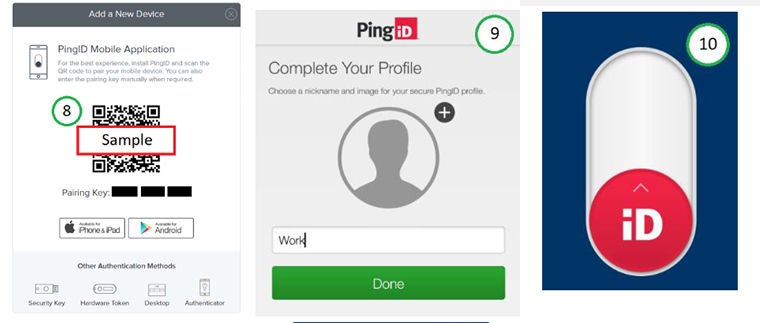
Log into your Select Health Link Portal.
- Enter your Username and Password
- Click Sign On.
- Click the icon PingID
Download Mobile Authenticator App
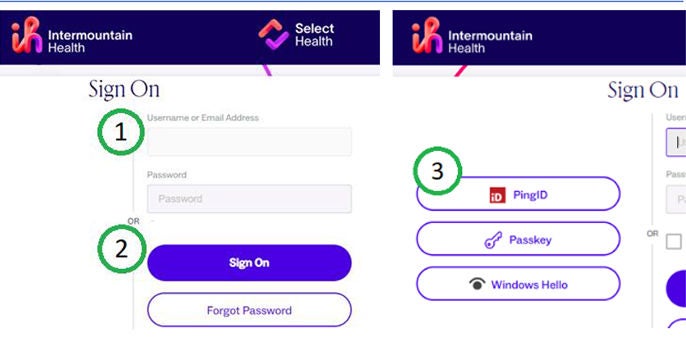
- Click Start on the Welcome to PingID page.
- On your mobile device, download the PingID authenticator mobile app.
- Go to the App Store or Google Play Store.
- Search and download PingID onto your device.
Pair your Authenticator App
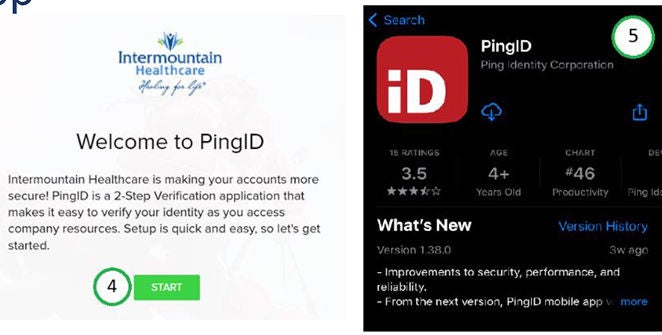
- Open PingID on your Mobile Device
- Accept any temrs and conditons.
- Scan the QR code or manually enter the pairing key displayed on your computer.
- Complete your profile by giving it a nickname, then select Done.
- You will be prompted with a "push" notification (or a biometrics request depending on your phone's current settings). Swipe up on the push notification to sign in.
- You should now be able to login to the Select Health Link Portal.